As a platform dedicated to international flower trade, we are constantly welcoming new merchants from all over the world to join Flower Meister International™. To start doing business with selected merchants, you will first need to register them as your shipping destinations.
Under Settings, select either C&F Shipping Destinations or FOB Shipping Destinations.
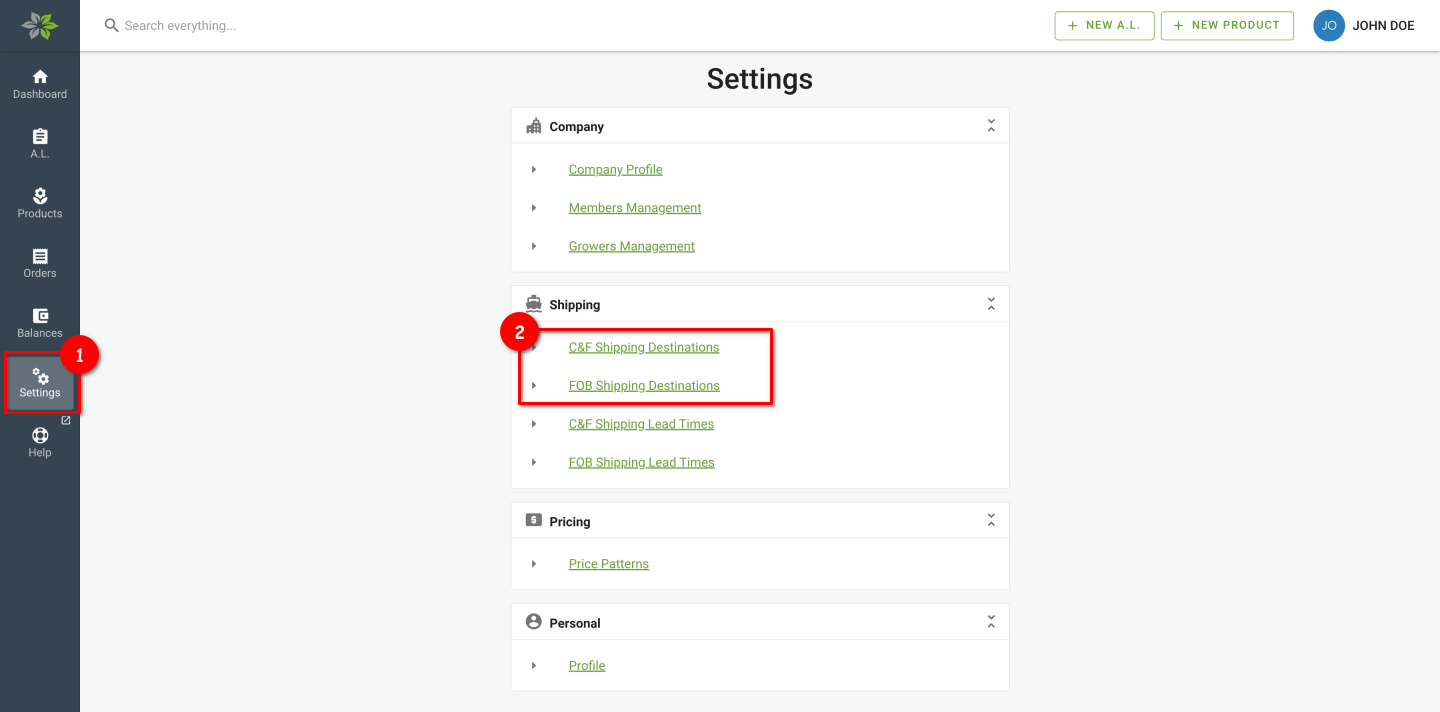
Select or deselect merchant as shipping destination
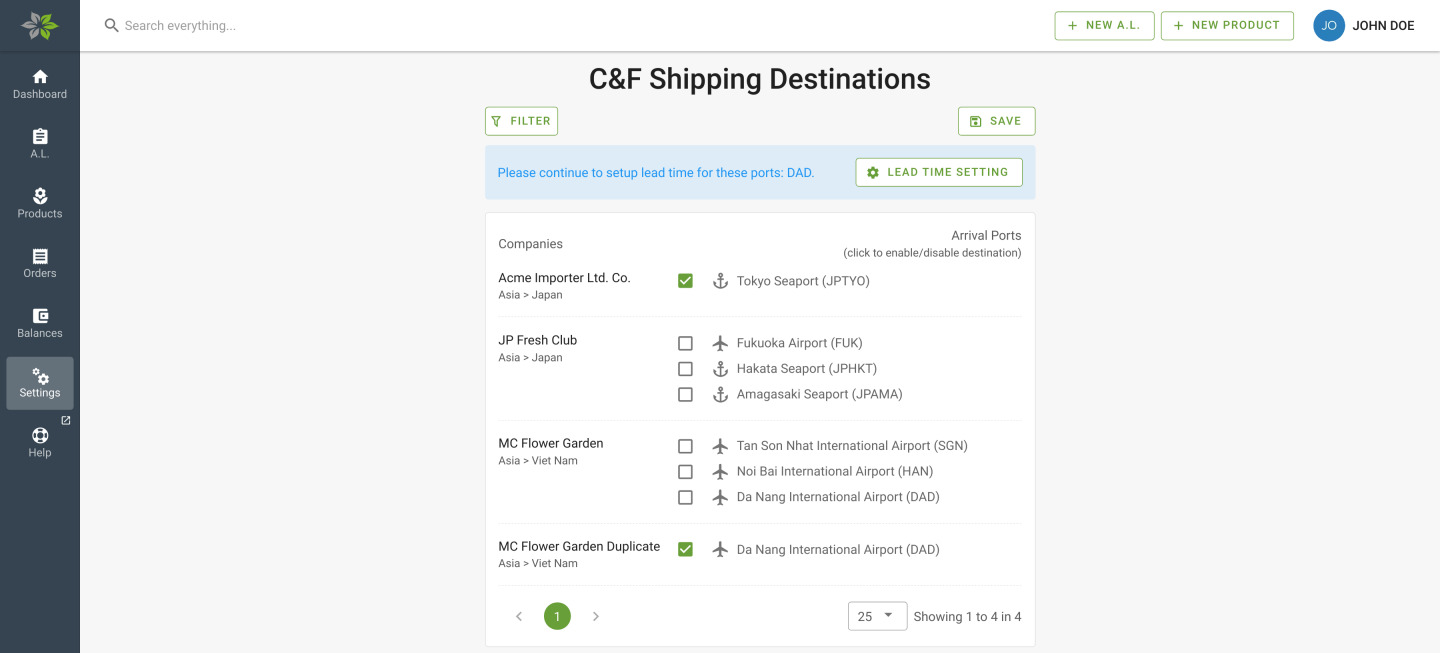
To select a merchant as a shipping destination, select one or more of their registered arrival ports.
To deselect a merchant as a shipping destination, uncheck the box next to their registered arrival ports.
Click the Save button once all changes have been made. If you have deselected a previously registered shipping destination port, all availability lists and products will be unpublished from that port of the merchant. Note: Re-registering the port will not automatically republish your availability lists and products to that port.
You will be prompted to set a lead time for the newly registered shipping destinations. See the next section for more information.
Configure lead time to a port
Lead time is the estimated time taken between when an order has been received and:
- in the case of C&F, when the order’s shipment leaves the departure port, or
- in the case of FOB, when the order’s shipment arrives at the departure port.
When you set a lead time to a port:
- The lead time information will show up when merchants are viewing your availability list.
- Merchants can only set the ETD deadline to a date after the day of order plus the assigned lead time (if any).
To open the lead time settings page, either click on the prompt from the Shipping Destinations page or from the Settings page (select either C&F Lead Times or FOB Lead Times).
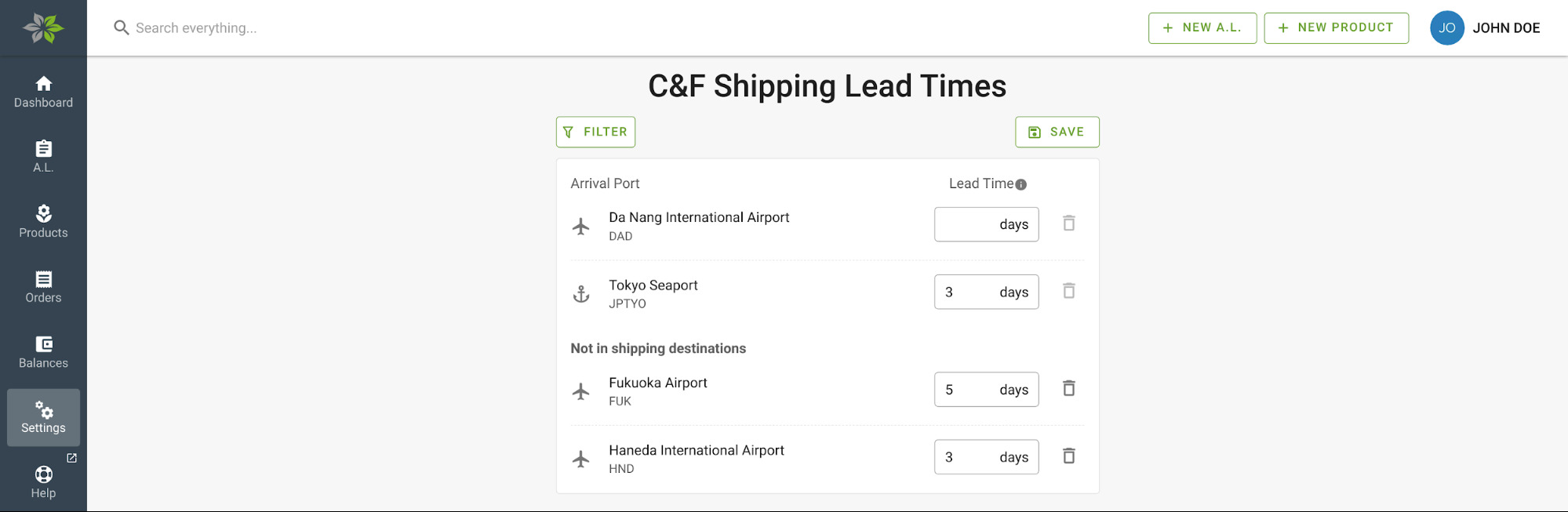
Input the number of days to the respective ports and click the Save button to save your settings. You can also safely remove settings from ports that are no longer registered as your shipping destinations.